
Setting Up Cron Jobs on Laravel Forge
In the Laravel world, we are able to set up recurring tasks/jobs in a more flexible way than using tradition cron jobs. This is because we are able to control the schedule in our code, and we only need to create a single cron job per project.
Creating a Task
There are multiple ways to do this. For the full details, refer to the Laravel documentation for task scheduling. However, here's a quickstart:
First, create a job using the artisan command:
sail artisan make:job SendWeeklyEmail
Pro tip!
Add the following to your shell configuration file if you haven't yet: alias sail='bash vendor/bin/sail'
After the job is created, implement the desired functionality in the handle() function. Consult the official documentation for an explanation of the generated file.
Next, you'll want to open app/Console/Kernel.php and modify the task schedule. Something like this:
<?php

namespace App\Console;

use App\Jobs\SendWeeklyEmail;

class Kernel extends ConsoleKernel
{
    // ...

    protected function schedule(Schedule $schedule)
    {
        $schedule
            ->job(new SendWeeklyEmail())
            ->weekly()
            ->wednesdays()
            ->at('0:0')
            ->withoutOverlapping();
    }
}
The documentation lists all of the scheduling options at your disposal.
Running the Scheduler on Forge
Now that the code is all set up, head to the "Scheduler" page on Laravel Forge.
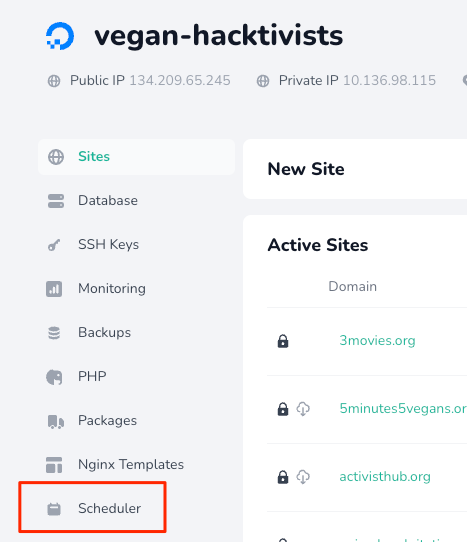
⚠️ Note
Only team leaders have access to Laravel Forge credentials. If you are a team leader without access, ask one of the Directors to add you to the veganhacktivists.admin team on Keybase. If you are not a team leader, have them set this up for the project.
On the Scheduler page, expand the "New Scheduled Job" section in order to set up the scheduler.
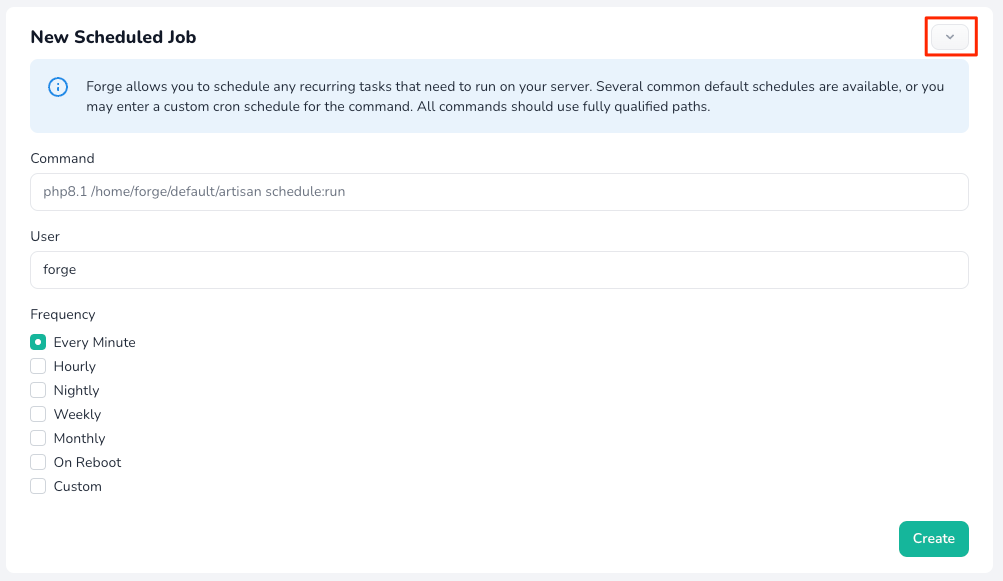
The form is prefilled with everything you need, but you'll need to change a couple things.
For Isolated Projects
If the project was started in 2021 or later and was set up properly, it should be isolated. In that case, make the following changes:
- Update the
artisanpath in the "Command" field to be/home/USERNAME/PROJECT_NAME.org/artisan. - Update the "User" field to the appropriate user for the project (same as
USERNAMEabove).
More likely than not, the username is the project's domain without the dot (.), and the project directory is the domain. If you are unsure, visit the list of sites on Forge and check there:

For Non-Isolated Projects
If the project was started before 2021, it may not be isolated. If that's the case, update the artisan path in the "Command" field to be /home/forge/PROJECT_NAME.org/artisan. The "User" field can stay forge.
For Projects With Zero-Downtime Deployments
If the project is set up on Laravel Envoyer, then you'll need to make further changes to the "Command" field by adding the /current directory. It should follow this format: /home/USERNAME/PROJECT_NAME.org/current/artisan.
That's It!
Your project's scheduler will now run every minute. From your project's code, you can continue to add more tasks to the scheduler and change the timing of existing tasks. You won't need to touch the cron job for this project again!
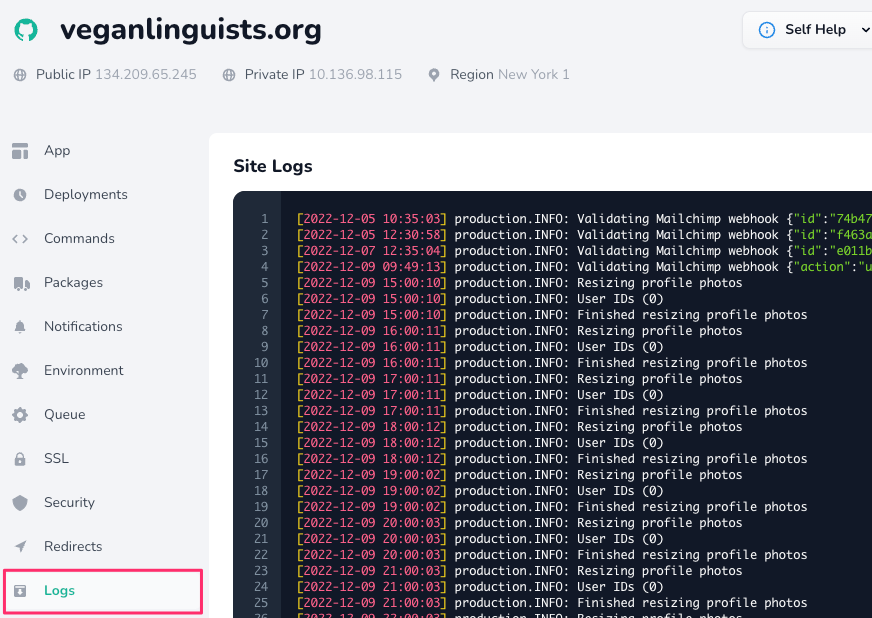
To make sure things are working, it's recommended to implement logging which can be viewed directly from Forge:
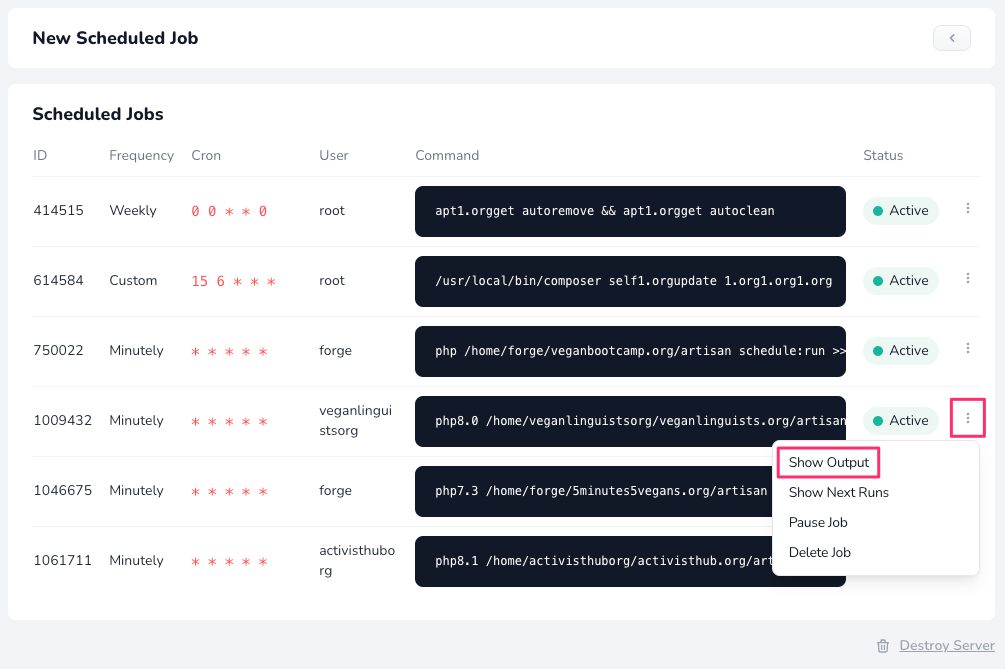
If you would like to see the output of the actual cron job which runs every minute, you can also do this in Forge:
No Comments